Beginner / 45 min
Build a light that listens
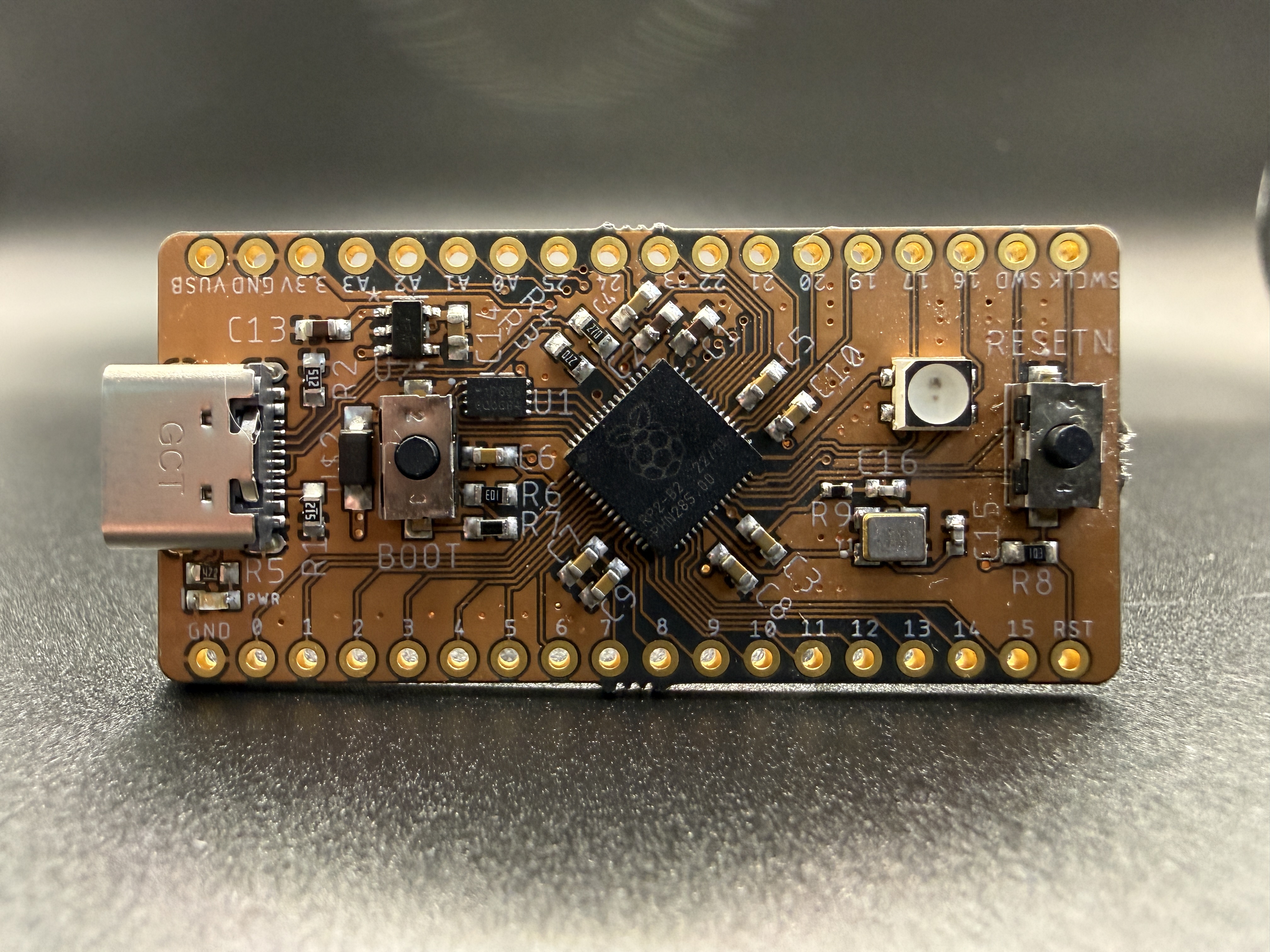
A blinking LED is useful because it checks several things at once. Your board has power, your program is running, and a pin is controlling something you can see. Adding a button gives us a complete input-and-output project with only a few more connections.
We'll use a BREAD 2040 for the steps below. CAST-AWAY RP2040 also exposes the D0 and D1 names used here, but use its own CircuitPython firmware and check its physical pin locations. Other boards may use different names or reserve those pins for other hardware.
Gather the parts
- A BREAD 2040 with soldered headers, plus a USB-C cable that carries data.
- A solderless breadboard and jumper wires.
- One ordinary red LED.
- One 1 kΩ resistor, rated at 1/4 watt or similar.
- One normally open momentary pushbutton.
The headers must make reliable electrical contact. Loose pins pushed through unsoldered board holes won't give you a dependable circuit.
We're using an external LED deliberately. BREAD 2040 has an addressable RGB LED, which needs a data protocol and a library. It isn't controlled like an ordinary LED connected to a GPIO pin. RPGA Feather's onboard RGB LED is controlled by its FPGA, so this example shouldn't be redirected to that LED either.
Install CircuitPython
Back up any files already on your board before replacing its firmware.
- Open the BREAD 2040 CircuitPython download page and download its stable
.uf2release. For CAST-AWAY, use the separate CAST-AWAY RP2040 download page. These may appear under the earlier Oak Development Technologies name. - Disconnect USB. Hold the board's BOOT button while reconnecting USB, then release it. The RP2040 bootloader should appear as a drive named
RPI-RP2. - Copy the downloaded
.uf2file ontoRPI-RP2. The board restarts, and a different drive namedCIRCUITPYshould appear. - Open a plain-text code editor, such as Mu or an editor you already use. Save the following program as
code.pydirectly onCIRCUITPY, not inside a subfolder.
print("Hello from the board!")Open your editor's CircuitPython serial console to see the message. If the console was opened after the message printed, press Ctrl+D to reload the program. Ctrl+C stops the running program and opens the interactive prompt, called the REPL. There, import board followed by dir(board) shows the pin names available in your installed firmware.
If you need help connecting the console, follow Adafruit's serial console setup instructions. Start with this small program before adding wiring. It gives you a known working point to return to.
Wire the LED
Unplug USB before making connections. Put the board across the breadboard's center gap so the two header rows aren't connected together. Check which holes your breadboard connects; power rails may be split halfway along their length.
Make this series circuit:
BREAD 2040 D0 -> 1 kΩ resistor -> LED anode (+)
LED cathode (-) -> BREAD 2040 GND
The LED's longer lead usually identifies its anode. The flat edge on the package usually identifies the cathode; check the part's documentation if its leads have been trimmed. The resistor can go on either side of the LED as long as it stays in series.
For a typical red LED with roughly a 2-volt forward drop, the resistor current is approximately (3.3 - 2.0) / 1000, or 1.3 milliamps. That's enough for a visible indicator without asking the pin to supply much current.
Make it blink
Reconnect USB and replace code.py with this complete program:
import time
import board
import digitalio

led = digitalio.DigitalInOut(board.D0)
led.switch_to_output(value=False)

blink_delay = 0.5

while True:
    led.value = True
    time.sleep(blink_delay)
    led.value = False
    time.sleep(blink_delay)
import makes a module available to the program. board supplies pin names, digitalio controls digital pins, and time provides the delay. These modules are built into this board's firmware; this project needs no additional library downloads.
DigitalInOut creates an object representing our pin. switch_to_output() configures it to drive a signal, initially low. The loop drives it high for half a second, then low for half a second. One full cycle takes about one second, plus a little execution overhead.
Try changing blink_delay to 0.1. Predict the result before saving. Then set it back. Changing one thing at a time makes it easier to connect your code to what the circuit does.
The digitalio API reference documents the pin configuration methods and Boolean values we're using.
Add the button
Unplug USB again. Keep the LED circuit in place and add these connections:
BREAD 2040 D1 -> one side of the pushbutton
Other side of the pushbutton -> BREAD 2040 GND
Many four-leg tactile buttons have two pairs of legs that are permanently connected within each pair. Pressing connects the pairs together. Use one connection from each pair, checking with a continuity meter or the button's datasheet. Connecting two legs from the same pair makes the input look permanently pressed.
Reconnect USB and replace code.py with this complete program:
import time
import board
import digitalio

led = digitalio.DigitalInOut(board.D0)
led.switch_to_output(value=False)

button = digitalio.DigitalInOut(board.D1)
button.switch_to_input(pull=digitalio.Pull.UP)

system_enabled = True

while True:
    button_pressed = not button.value

    if button_pressed and system_enabled:
        led.value = True
    else:
        led.value = False

    time.sleep(0.01)
The internal pull-up holds D1 high when the button is released. Pressing the button connects it to ground, so button.value becomes False. Applying not gives us button_pressed = True. The if statement then turns on the LED if the system is also enabled.
Hold the button and the light should stay on. Release it and the light should turn off. Change system_enabled to False, save, and try again. The button still changes the input, but our decision keeps the output off. That's the truth table from the first page doing useful work.
The short sleep spaces out our checks. It isn't a precise timer or a complete debounce solution. Mechanical contacts can bounce between states during a press. That rarely matters for this hold-to-light project, but a press counter or toggle switch needs debouncing so one press doesn't become several events. CircuitPython's keypad module is one option to explore for that next project.
When something doesn't work
Check the simplest possible failure first. A data cable and a charging-only cable can look identical.
- Neither USB drive appears: try a known data cable and a direct USB port, then repeat the BOOT procedure. Check that your operating system can see the USB device.
- Only
RPI-RP2appears: you're in the bootloader. Copy the correct board-specific.uf2onto it. Yourcode.pybelongs onCIRCUITPYafterward. - The program reports an error: read the serial console's traceback and line number. Check spelling, capitalization, indentation, and whether the editor saved
code.py.txtinstead ofcode.py. board.D0orboard.D1is missing: inspectdir(board)in the REPL and confirm you've installed the firmware for your board. Physical header positions and Python pin names aren't interchangeable.- The LED stays dark: return to the blink program. Unplug the board and check polarity, resistor placement, ground, and breadboard rows.
- The light always acts pressed: check the button's permanently connected leg pairs. If the circuit is correct, print
button.valueinside the loop temporarily; released should readTrueand pressed should readFalse.
If you later add sensors or displays, their drivers usually go in the lib folder on CIRCUITPY. Use the CircuitPython library bundle matching your firmware's major version. Our programs above use built-in modules, so missing third-party libraries aren't a possible cause here.
Choosing a board for what comes next
The useful part of this project is how much carries forward. You've assigned values, repeated instructions, made a decision, configured an output, and read an active-low input. A sensor-controlled indicator uses the same structure. So does a small test fixture, with more inputs and more careful checks.
If you're choosing a board from the Kavrous shop, start with the project you want to build:
- BREAD 2040 is my recommendation for following this guide. Its breadboard-friendly layout and accessible GPIO make it a practical place to learn wiring, buttons, sensors, and CircuitPython without immediately designing a custom PCB.
- CAST-AWAY RP2040 is worth considering when your project needs a smaller board. It supports CircuitPython and has castellated pads, so a breadboard prototype can eventually become something soldered onto your own carrier PCB. Check its available pins against your project before choosing it.
- RPGA Feather gives you a path from microcontroller programming into FPGA development by pairing an RP2040 with an iCE40 FPGA. CircuitPython runs on its RP2040; configuring the FPGA requires a separate hardware-design workflow and bitstream. It's a useful next step when you want to explore how software and parallel logic can work together.
The shop also carries IcyBlue Feather V2 for a more focused FPGA path. It isn't a board for running this CircuitPython project. Read its product page's documented 1.2-volt regulator limitation and workarounds before choosing it for an FPGA design.
You don't need to learn every interface or choose your forever board today. Get this small circuit working, explain to yourself why the input reads low when pressed, and change the program until you can predict its behavior. That gives you a foundation you can use when the next project has a display, a sensor, or a whole row of outputs.
That's the kind of progress we want to support at Kavrous: hardware you can understand, tools you can build with, and a clear path to trying something more ambitious.